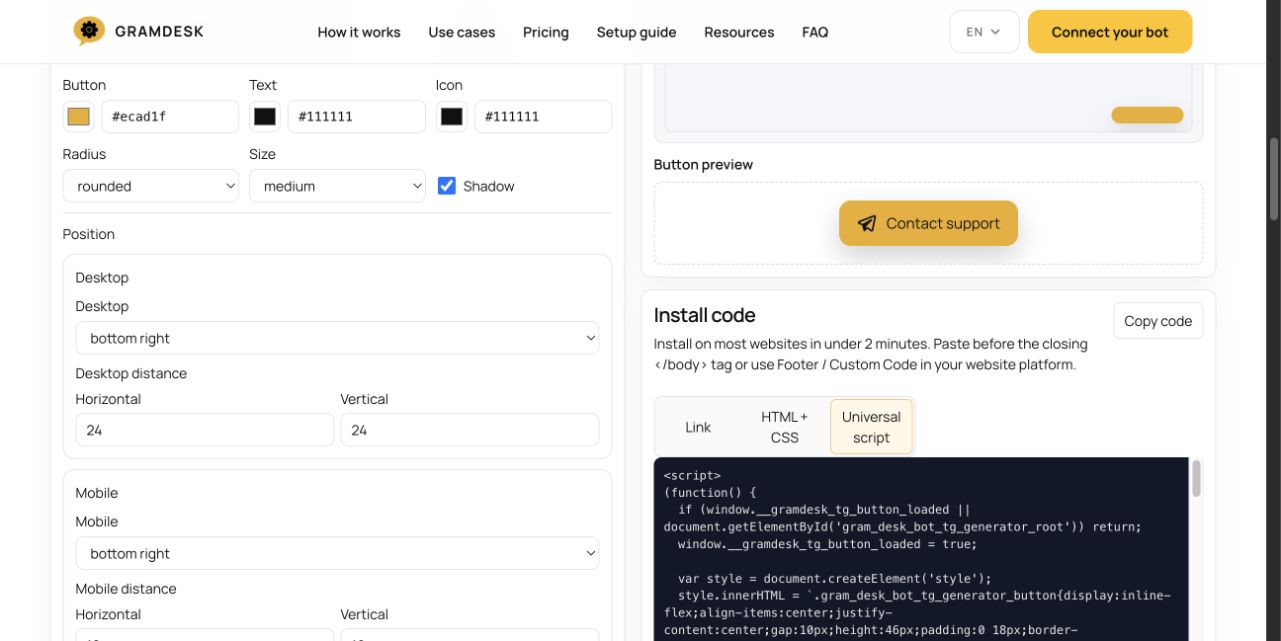
To add a Telegram button to WordPress, you need to decide where the button should appear, what it should open, and how you want to install it: with a WordPress plugin, a multi-channel contact widget, a page builder, a live chat tool, or a small code snippet added to your site footer. For a simple support setup, the button should usually open a Telegram bot rather than a personal Telegram profile, because a bot keeps customer messages separate from private chats and can later connect to a shared team inbox. The easiest non-technical options are a Telegram or contact-button plugin, a site-wide footer code tool such as WPCode or Header Footer Code Manager, or a ready-made button generated with the GramDesk Telegram Button Generator. In this guide, we will go through the practical options step by step, without assuming that you already know where WordPress hides the closing </body> tag or why “just paste this code into your theme” is not always helpful advice.

| Method | Best for | What you need to do | Main advantage | Main drawback |
|---|---|---|---|---|
| Telegram WordPress plugin | Small websites, service pages, simple blogs | Install a plugin, add your Telegram link, choose button position | Easy setup from the WordPress dashboard | Depends on plugin quality and updates |
| Multi-channel contact widget | Sites using Telegram, WhatsApp, Messenger, email or phone | Add a widget and enable the contact channels you need | Good for international audiences | Can be too much if you only need Telegram |
| Live chat platform | Teams that need operators, routing, analytics and chat history | Install LiveChat, Tawk.to, Crisp, Zoho SalesIQ, Freshchat or a similar service | Full support workflow | More complex than a simple Telegram button |
| GramDesk button generator | Users who want ready-made button code | Generate the button code and insert it through WPCode or another footer-code tool | No need to write CSS or JavaScript manually | You still need to insert the code once |
| Elementor, Gutenberg or theme builder | Specific pages, landing pages, pricing pages or contact blocks | Add a regular button and link it to Telegram | Good for contextual CTA blocks | Not automatically visible everywhere |
| Manual theme edit | Developers or advanced users | Add HTML/CSS/JS through a child theme or WordPress hook | Full control | Risky for non-technical users |
Why add a Telegram button to a WordPress website
WordPress is often used by small businesses that do not have a formal support department. A local service provider, a niche online store, a consultant, a creator, an agency, a private clinic, a course creator or a small SaaS project may all use WordPress because it is flexible and familiar. But the support flow is often less organized than the website itself. A visitor has a question about pricing, delivery, booking, compatibility, availability or a refund, and the site gives them a form, an email address or a phone number that may not feel convenient at that moment.
A Telegram button shortens the path between interest and conversation. Instead of searching for a contact page, filling out a form or waiting for an email reply, the visitor clicks a button and opens Telegram. This is especially useful when the question is small but important. “Is this available?”, “Can you deliver tomorrow?”, “Can I book this time?”, “Does this work with my setup?”, “Can I send a screenshot?” These questions may not deserve a full helpdesk ticket, but they can decide whether the customer continues or leaves.
The value of a Telegram button is not only technical. It changes the tone of communication. A contact form feels like a request. A messenger feels like a conversation. For small businesses, this matters because many customers do not want to enter a formal support process just to ask one practical question. They want a fast answer from a real person, or at least from a business channel that feels direct and easy to use.
At the same time, the button itself is only the entrance. If it opens the owner’s personal Telegram account, everything is fast at first, but customer messages soon mix with private conversations, supplier chats, family messages and that one friend who sends memes at 1 a.m. If the button opens a Telegram bot, the setup is cleaner. The customer sees a business contact, and the company can later connect the bot to a shared support workflow. That is why this guide focuses not only on “how to add a button”, but also on choosing the right type of button for a real WordPress business site.
If you are still choosing the broader support approach and not only the WordPress installation method, start with our main guide on how to add a Telegram chat to your website. That article explains when Telegram can replace a traditional live chat widget, how it fits small-business support, and why a bot-based flow is often cleaner than sending customers into personal chats.
What should the Telegram button open?
Before you install anything, decide what happens after the click. This is the step many tutorials skip. They explain how to add a button, but not what the button should lead to. Technically, a Telegram button can open a personal profile, a Telegram bot, a channel, a group, or a bot start link. For website support, these options are not equal.
A personal Telegram profile is the fastest option. The link usually looks like https://t.me/username. The visitor clicks the button, Telegram opens, and the conversation starts with that account. This can be fine for a freelancer, a consultant, a creator, or a very small website where one person handles all communication. It is simple, direct and requires almost no setup.
But a personal profile is not ideal for a business website. It exposes a private contact as the public support channel. It makes it hard to add teammates. It also creates a messy support history, because customer conversations live in the same place as personal messages. If you ever need another person to answer, you will end up forwarding messages, sending screenshots or explaining the context manually. That works for a week. It does not work as a process.
A Telegram bot is usually a better public contact point. The link may still look simple, for example https://t.me/your_support_bot, but the customer is writing to a business bot rather than a private person. This protects the owner’s personal account and creates a more professional entry point. Later, the bot can connect to a shared inbox, automation, routing or team workflow.
A Telegram channel is usually the wrong destination for a support button. Channels are good for news, announcements, content and updates. They are not designed for one-to-one customer support. A public group is also usually not the best option, because customers may see other messages or hesitate to ask private questions in a shared space. For support, the cleanest setup is usually: customer writes to a Telegram bot, and the team replies from a private workspace.
Option 1. Use a Telegram plugin for WordPress
The most familiar way for many WordPress users is to install a plugin. You open the WordPress dashboard, go to Plugins, click Add New, search for a Telegram-related plugin, install it, activate it, and configure the button. A plugin usually gives you a settings screen where you can add your Telegram username or bot link, choose where the button appears, change the label, adjust colors and decide whether the button is shown on all pages or only selected areas.
This is the easiest path if you do not want to touch code. It also fits the WordPress mental model: if the site needs a feature, install a plugin, configure it, test it, and keep moving. For a simple site, that may be completely enough. A service business, agency, personal brand or small store can often launch a working Telegram contact button in less time than it takes to decide which shade of blue feels “more Telegram”.
One plugin category to look at is Telegram widgets and join-link plugins. For example, WP Telegram Widget and Join Link can display Telegram public channel or group content and create a join link/button. This is not always the same as a floating customer-support button, but it can be useful if your WordPress site also promotes a Telegram channel or community. For support, make sure the plugin you choose supports the type of link and placement you need, not only channel feed display.
The installation process usually looks like this:
- Open your WordPress dashboard.
- Go to Plugins → Add New.
- Search for a Telegram button, Telegram chat, Telegram widget or Telegram join-link plugin.
- Check when the plugin was last updated, how many active installations it has, and whether it is compatible with your WordPress version.
- Install and activate the plugin.
- Open the plugin settings.
- Add your Telegram profile link or, preferably, your Telegram bot link.
- Choose the button position, usually bottom right or bottom left.
- Set a clear label such as “Message us on Telegram” or “Ask in Telegram”.
- Save changes and test the website on desktop and mobile.
The main advantage is speed. The main drawback is dependency. Every plugin adds one more thing to maintain, update and check for compatibility. If your WordPress site already has many plugins, adding another one may not be a big issue, but it should still be intentional. A button should solve a support problem, not become one more decorative widget nobody checks.
Option 2. Use a multi-channel contact widget
A multi-channel contact widget is a floating contact button that opens several options: Telegram, WhatsApp, Messenger, email, phone, Instagram or other channels. Instead of placing a separate button for every messenger, you show one contact bubble and let the visitor choose. This is useful when your audience is spread across different regions or when you are not sure which messenger visitors prefer.
This approach is especially relevant for international sites. In the United States and Europe, some users may be comfortable with live chat, email or Messenger. In India and many Asian markets, WhatsApp is often a very important business communication channel, while Telegram may still be useful for specific audiences such as tech communities, crypto users, online services, creators and digital products. In Southeast Asia, messaging habits vary by country, so a multi-channel widget can be safer than assuming one channel works for everyone.
The benefit is flexibility. You can offer Telegram as one option, WhatsApp as another, and email or phone as a fallback. This can be useful for multilingual websites, service marketplaces, travel businesses, online schools, digital agencies and ecommerce stores. The visitor does not need to search your footer or contact page. The contact options stay visible.
The risk is choice overload. If the widget opens five channels, the visitor has to decide where to write. Sometimes that is helpful. Sometimes it slows them down. If Telegram is the channel you actually want to use for support, make it the primary option. If WhatsApp is more important for a specific region, show WhatsApp first there. A contact widget should make action easier, not turn the support button into a small airport departure board.
For a simple Telegram-first setup, a multi-channel widget may be more than you need. For a website serving India, Southeast Asia, Latin America or several international markets, it can be a practical compromise because customer messaging habits are not always the same across countries.
Option 3. Use a live chat platform instead of a Telegram button
Some WordPress users search for “Telegram button”, but what they actually need is a full live chat system. That means website chat, agents, conversation history, offline forms, routing, visitor tracking, canned replies, reports and integrations. In that case, a Telegram button may be too simple. You may want a live chat platform instead.
Popular global options include LiveChat, Tawk.to and Crisp. These tools usually add a chat widget to the website and give your team a separate dashboard or app for replying. They are useful when you want a classic support experience inside the browser, especially if you have multiple operators or need formal support processes.
For India and Asia, it also makes sense to consider tools such as Zoho SalesIQ and Freshchat. Zoho has a strong presence among businesses that already use Zoho CRM, Zoho Desk or the wider Zoho ecosystem. Freshchat, from Freshworks, is also relevant for teams that want live chat, bots and support workflows connected to a broader customer engagement stack. These are not “Telegram button” tools in the narrow sense, but they are realistic alternatives when a business wants more than a messenger link.
The difference is important. A live chat platform keeps the visitor on the website and moves the team into a support dashboard. A Telegram button moves the visitor into Telegram and lets the business keep support closer to a messenger workflow. Neither is universally better. They solve different problems.
If your website receives many chats per day, has several operators, needs reports, assigns conversations by department, uses CRM data or wants automated greetings, a live chat platform may be the right choice. If you mostly need a fast, low-friction way for visitors to contact you, Telegram may be simpler. Many small businesses do not need a cockpit. They need a doorbell that someone actually hears.
Option 4. Generate a Telegram button with GramDesk and insert it into WordPress
If you do not want to search through plugins, but also do not want to write a button manually, you can use the Telegram Button Generator from GramDesk. This option is useful when you want a clean, ready-made Telegram button and a small code snippet that can be added to most WordPress sites.
The generator prepares the button code for you. You choose or enter the Telegram destination, adjust the button style, copy the generated code and insert it into WordPress. The practical question is where to insert it. Many technical instructions say “paste the code before the closing </body> tag,” but that phrase is not friendly to a normal WordPress user. You do not need to open your theme files and search for that tag. In most cases, you should use a code insertion plugin or a Custom Code area in your theme or page builder.
A common option is WPCode. It lets you add header and footer scripts, custom HTML, CSS, JavaScript and snippets without editing theme files. For a floating Telegram button, you would usually create a new snippet, paste the generated code, choose a site-wide footer placement, activate the snippet and save. WordPress will then output the code in the right area of the page.
Another option is Header Footer Code Manager. The logic is similar: create a new snippet, paste the button code, choose footer placement, set it to show on the whole site, and save. This is safer than editing footer.php, because you can disable or edit the snippet from the dashboard if something looks wrong.
The setup flow looks like this:
- Create a Telegram bot or prepare your Telegram destination link.
- Open the Telegram Button Generator.
- Configure the button style, position and destination.
- Copy the generated code.
- Install WPCode or Header Footer Code Manager in WordPress.
- Create a new code snippet.
- Paste the generated code.
- Choose footer or site-wide footer placement.
- Save and activate the snippet.
- Open the site in an incognito window.
- Test the homepage, a blog post, a service page and the mobile version.
This method is a good balance between control and simplicity. You do not need a dedicated Telegram plugin, and you do not need to write the button yourself. You also keep the button code in one place, so updating or removing it later is easier.
Option 5. Add a Telegram button with Elementor, Gutenberg or your theme builder
If you only need the Telegram button in a specific part of the website, you can add it as a normal button using your page builder or editor. This works well for landing pages, pricing sections, contact pages, service descriptions, product pages and blog posts that drive commercial traffic.
In Elementor, add a Button widget, write a label such as “Message us on Telegram”, and paste your Telegram link into the URL field. You can use a profile link, bot link or a more specific bot start link. Then adjust the design, spacing and mobile behavior. If you use Elementor Theme Builder, you can place the button in a header, footer or reusable template so it appears across several parts of the site.
In the WordPress block editor, also known as Gutenberg, you can use the Buttons block. Add the button, write a clear label, paste the Telegram link and style it to match your page. This is a good option when you want the button inside an article, after a pricing explanation or next to a call-to-action block. It is also very easy for non-technical editors because it works like normal page content.
Many WordPress themes also have header, footer or template builders. You may be able to add a button directly to the site header, mobile menu, sticky bar or footer. This is cleaner than adding another plugin if the theme already supports it. The limitation is that a regular header button is not the same as a floating support button. It is visible in the navigation, but not always visible while the user scrolls.
This method is best when the Telegram button is part of the content strategy. For example, a pricing section can have “Ask before you order”, a WooCommerce product page can have “Question about this product?”, and a service page can have “Send us your project details in Telegram”. These contextual buttons often feel more natural than one generic floating icon.
Option 6. Add the button manually through a child theme or WordPress hook
Manual installation is the developer-friendly option. It gives you full control over markup, styling, scripts, conditions and performance. But it is not the first option I would recommend to a non-technical website owner.
The rough version is editing the theme’s footer.php file and placing the button code before the closing </body> tag. This works, but it is fragile. If you edit the parent theme directly, updates may overwrite your changes. If you paste code in the wrong place, you may break the layout or create validation issues. If you forget what you changed, debugging becomes unpleasant later.
The better developer approach is to use a child theme and hook into wp_footer. A developer can add the button HTML there, enqueue CSS properly and control where the button appears. This is clean and maintainable, but it requires comfort with WordPress development. It is not the best path for someone who only wants to add a support button before lunch.
Manual installation makes sense when you want perfect design control, minimal plugins, conditional display rules, or integration with an existing custom theme. For example, you may want to hide the button on checkout, show a different link on product pages, or add tracking events. For most small sites, using WPCode or a plugin is safer and faster.
Where should the Telegram button appear?
A floating button is usually placed in the bottom-right corner, because that is where many users expect a chat button. This works well on desktop, but mobile needs special attention. On a phone, the bottom area may already contain a cookie banner, sticky checkout button, mobile menu, “back to top” button or WooCommerce cart bar. If your Telegram button covers those elements, it stops being helpful and becomes a tiny blue obstacle.
For a service business, good places for Telegram contact include the homepage, pricing page, service pages, contact page and high-intent blog articles. For an online store, the most useful places are product pages, cart, delivery information, returns page, order confirmation page and customer support page. For an online school, use course pages, enrollment pages, pricing, FAQ and payment-related pages. For a SaaS or digital product, use pricing, feature pages, trial signup pages and help sections.
You do not always need to show the button everywhere. If the user is in the middle of checkout, a floating button may distract them. If a page already has a sticky CTA, another floating action can compete with it. If the page is purely legal, such as privacy policy or terms, a support button may not matter. Good placement is not “show it everywhere because we can.” Good placement is “show it where the visitor may need help before taking action.”
The label matters too. A plain Telegram icon may be recognized by many users, but it is not always clear whether it opens a support chat, a public channel or a social profile. A label such as “Message us on Telegram”, “Ask in Telegram”, “Need help?”, “Question about your order?” or “Chat with support” is more specific. The button should describe the action, not just the platform.
Personal profile, Telegram channel, public group or bot?
A personal Telegram profile is fine for solo work, but it is not a strong long-term support setup. It mixes customer conversations with private messages and makes the business dependent on one person’s account. If the site is a real customer acquisition channel, it is better to avoid building the entire support flow around one personal inbox.
A Telegram channel is not a support destination. It is good for broadcasting updates, publishing news, sharing product releases or building a community around content. But if a visitor clicks “support” and lands in a channel, they may not know how to ask a private question. A channel can support marketing, but it does not replace customer communication.
A public group can work for communities, but it is usually not right for customer support. Customers may not want to ask order, billing, medical, legal, technical or personal questions in a public space. They may also see unrelated messages and leave before asking. A group is better as an internal team space or a public community, not as the main support entry point for a website visitor.
A Telegram bot is the cleanest option for business support. It gives the visitor a simple one-to-one conversation, keeps your personal account private, and lets you build a team workflow behind the scenes. With GramDesk, the customer can write to your Telegram bot, while your team replies from one private Telegram workspace. That keeps the WordPress button simple while making the support process more organized.
How to choose the right option for the US, India and Asia
For a US-focused website, Telegram may not always be the default customer support channel. Many visitors may expect a live chat widget, email, contact form or SMS-style communication. That does not mean Telegram is wrong. It means you should use it where your audience already understands it: tech products, crypto services, creator businesses, digital communities, international SaaS, developer tools, online education or any audience that already uses Telegram.
For India, WhatsApp is often a major customer communication channel, so a Telegram-only button may not be the best universal choice for every business. But Telegram can still be relevant for tech-savvy audiences, communities, education, trading, digital services and cross-border products. If the site serves a broad Indian audience, consider a multi-channel widget with WhatsApp and Telegram, or use a live chat platform such as Zoho SalesIQ or Freshchat if the team needs a more formal support setup.
For Southeast Asia, user behavior can vary a lot by country and niche. Some markets are strongly messenger-driven, but the preferred messenger may not always be Telegram. A travel business, ecommerce store or local service may need WhatsApp, Facebook Messenger or live chat. A digital community, crypto project, tech product or online course may find Telegram much more useful. The button strategy should follow actual customer behavior, not the owner’s favorite app.
For international WordPress sites, the safest recommendation is to make the contact channel adaptable. Use Telegram where it makes sense. Add WhatsApp or live chat where the audience expects it. Keep the site-wide contact button simple, and use local pages or language versions to adjust the preferred channel. A US page may emphasize live chat and email; an India page may emphasize WhatsApp and business chat; a tech-focused page may emphasize Telegram.
Common mistakes when adding a Telegram button to WordPress
The first mistake is installing the button and never testing it on mobile. A button can look perfect on a desktop screen and still cover the most important action on a phone. Always check the homepage, product page, pricing page, checkout or lead form, blog article and contact page. Test both logged-in and incognito views, because WordPress admin bars and caching plugins can hide layout problems.
The second mistake is using only a Telegram icon without any label. Icons are not always self-explanatory. Some users may think it links to a channel, some may not recognize it, and some may ignore it as decoration. If the button is for support, say so. “Message us on Telegram” is clearer than a floating icon with no context.
The third mistake is sending all customer messages to a personal account. It is fast, but it creates a support bottleneck. If you are unavailable, the business is unavailable. If someone else needs to help, they do not have the history. If you later move to a team process, old conversations remain stuck in your personal chat list. For a real business site, a bot is usually a better public contact point.
The fourth mistake is adding too many communication widgets. A website with Telegram, WhatsApp, Messenger, live chat, phone, email, newsletter popups and exit-intent offers can feel desperate rather than helpful. Choose the channels that matter. Make the primary one obvious. Keep the rest available but not noisy.
The fifth mistake is adding a button before deciding who answers. The button can increase messages, but it cannot create a support process by itself. If nobody checks Telegram, the button will only make slow support more visible. Decide who receives notifications, who replies, what happens outside business hours, and whether the messages should go into a shared team workspace.
How to know whether the button is working
After installation, do not only check whether the button appears. Check whether it helps people contact you. Are more visitors asking questions before purchase? Are customers using Telegram for product questions, booking, delivery, order status or support? Are the questions useful, or are they mostly things that should be answered on the page? The answers will tell you whether the button is placed well.
You can also track clicks. This may require analytics setup, but it is useful. A click event can show whether users interact with the button on the homepage, product pages, pricing pages or articles. If nobody clicks, the button may be hidden, unclear or irrelevant to the audience. If many people click but few convert, the issue may be response speed, message quality or the offer itself.
Pay attention to repeated questions. If many users ask the same thing, improve the page content. A Telegram button should not compensate for missing basic information. It should handle the questions that need a human answer. Good website support combines clear content with an easy contact path.
For teams, the best sign is operational clarity. Messages should not disappear into one person’s private chat. Teammates should know who replies. Customers should not repeat themselves. If the button leads to a bot connected to a shared workspace, the business gets more than a contact link. It gets a lightweight support entry point.
What is the best method for most WordPress sites?
If you want the simplest no-code setup, use a Telegram or contact-button plugin. This is the most familiar option for WordPress users and usually the fastest to configure. It is best for a small website that only needs a visible way for visitors to open Telegram.
If you want a flexible setup without depending on a specific Telegram plugin, use the GramDesk Telegram Button Generator and insert the generated code through WPCode or Header Footer Code Manager. This gives you a ready-made button and keeps the code in one manageable place. It is a good option when you want the button visible across the whole site.
If you want the button inside specific content, use Elementor, Gutenberg or your theme builder. This is ideal for pricing sections, product pages, service pages or blog posts where a contextual question is likely. For example, “Ask about this plan” or “Question about delivery?” will often work better than a generic floating icon.
If you need a full support platform, choose a live chat tool such as LiveChat, Tawk.to, Crisp, Zoho SalesIQ or Freshchat. That is a different level of solution. It may be right for a team that needs routing, analytics, bots, CRM integration or formal support workflows. But if your real need is simply “let visitors message us in Telegram,” a full live chat system may be more than you need.
The practical recommendation is simple: start with the lightest setup that solves the real problem. If customers just need a fast way to contact you, add a Telegram button. If you want to avoid personal chat chaos, connect the button to a Telegram bot. If your team needs to reply together, use a shared support workflow behind the bot. WordPress should remain the website. Telegram should become the conversation. The support process should stay simple enough that people actually use it.
Internal links for this article
If your website is an online store running on WordPress, the button can become part of a larger customer support flow. Read our guide to Telegram for WooCommerce support if you want to handle order questions, delivery questions, returns and product support through Telegram.
If you are still comparing the general website support model, read how to add a Telegram chat to your website. That guide explains the broader logic behind using Telegram instead of a traditional live chat widget.
If you want to create a button quickly, use the Telegram Button Generator and insert the generated code into WordPress through a footer-code tool or your theme’s Custom Code area.
If you want the full business workflow, see how GramDesk helps organize website customer messages in Telegram.
FAQ
Can I add a Telegram button to WordPress without a developer?
Yes. The easiest ways are using a WordPress plugin, adding a regular button with Elementor or Gutenberg, or generating button code and inserting it with WPCode or Header Footer Code Manager. You do not need to edit theme files manually. For most non-technical users, a plugin or footer-code tool is safer than editing footer.php.
Should the Telegram button link to my personal account or a bot?
For a personal website, a profile link can be enough. For a business website, a Telegram bot is usually better. A bot keeps your personal account private, gives customers a clear business contact, and makes it easier to connect a shared team workflow later.
How do I make the Telegram button visible on every WordPress page?
Use a plugin that supports site-wide display, insert generated button code through WPCode or Header Footer Code Manager, or add the button to a global template in your theme builder. If you add a button only inside one Gutenberg post or Elementor page, it will appear only there unless the block is part of a reusable global template.
Where should I place the Telegram button?
The most common position is the bottom-right corner. It works well for a floating support button, but always test it on mobile. Make sure it does not cover checkout buttons, cookie banners, sticky menus or other important actions. For contextual buttons, place them near pricing, product details, booking sections, delivery information or FAQ blocks.
Is a Telegram button better than live chat?
It depends on the support process. A Telegram button is better when you want a simple, lightweight way for visitors to contact you in a messenger. Live chat is better when you need operators, routing, reports, canned replies, automation, CRM integration and a formal support dashboard. Small businesses often start with a Telegram button and move to a heavier system only when the support volume justifies it.
Can I use Telegram and WhatsApp together?
Yes. You can use a multi-channel contact widget or separate buttons. This can be useful for international websites, especially if some markets prefer WhatsApp while others use Telegram. Keep the interface simple, though. Too many contact options can make the visitor hesitate.
What is the safest way to insert generated button code into WordPress?
Use WPCode, Header Footer Code Manager or your theme’s Custom Code area. Choose footer or site-wide footer placement. This is safer than editing theme files directly because you can disable or update the snippet from the WordPress dashboard.
Why do tutorials say to paste code before </body>?
Many floating buttons and widgets are designed to load near the end of the page body. In WordPress, you usually do not need to find the </body> tag yourself. A footer-code plugin or Custom Code setting will place the snippet in the correct area for you.
Can I add a Telegram button to WooCommerce product pages?
Yes. You can add a Telegram button to product pages, cart, checkout information, order confirmation pages, delivery pages and return-policy pages. Use specific labels such as “Question about this product?” or “Ask about delivery”. For a deeper store-support setup, read the WooCommerce support guide linked above.
What if the button does not appear after installation?
Clear your site cache and browser cache first. Then check whether the plugin or snippet is active, whether the display setting is site-wide, and whether the Telegram link is correct. Test in an incognito window and on mobile. If you use a caching plugin or CDN, purge the cache after making changes.
What should the button text say?
Use action-focused text. “Message us on Telegram”, “Ask in Telegram”, “Chat with support”, “Question about your order?” or “Need help?” are clearer than just “Telegram”. The user should understand that the button opens a support conversation, not a news channel or social profile.
Which option should I choose first?
For a simple site, start with a Telegram plugin or the GramDesk button generator plus WPCode. For a page-specific CTA, use Elementor or Gutenberg. For a larger team that needs a formal support process, consider live chat platforms such as LiveChat, Tawk.to, Crisp, Zoho SalesIQ or Freshchat. For a Telegram-first business workflow, connect the button to a Telegram bot rather than a personal profile.