
An appointment request is not a booking yet. It is the customer’s preferred service, date or time, waiting for the business to check availability and confirm the details. That distinction sounds small, but it prevents one of the most common problems in appointment-based businesses: the customer thinks a slot is reserved while the team thinks they only asked a question.
Telegram is useful for this stage because appointment requests are often conversational. A customer may ask about the right service, send a photo, request a particular specialist, offer two possible days and return later to reschedule. A form or calendar can collect structured information, but a human conversation is still needed when the request does not fit a simple slot.
GramDesk gives that conversation a shared place. The customer writes to a public Telegram bot. GramDesk routes the message into a private Telegram group and keeps the customer in a separate topic. The team replies from Telegram, while the confirmed appointment stays in the calendar or booking system the business already uses.
This guide is specifically about the operating procedure after an appointment enquiry arrives: collecting the minimum details, checking availability, confirming one exact time, and handling later changes. If you are still deciding how to collect booking and reservation messages in general, start with the broader guide to Telegram booking requests without a CRM.
Appointment request vs online booking
Appointment-request management and appointment scheduling software solve different parts of the journey.
| Customer need | Best place to handle it | Why |
|---|---|---|
| “Can I come Tuesday afternoon?” | Telegram conversation | The team must check availability and confirm an exact time. |
| Choose from live available slots | Booking or scheduling software | The system needs calendar synchronization and availability rules. |
| “Which service should I book?” | Telegram conversation | A person may need to ask follow-up questions before suggesting the next step. |
| Take a deposit and send automatic reminders | Booking or payment platform | This requires payment, reminder and cancellation automation. |
| Move or cancel an existing appointment | Telegram plus the calendar | The team discusses the change in chat, then updates the source of truth. |
Use GramDesk when the communication is the weak point. Dedicated scheduling products such as Calendly, Booksy or Square Appointments are the better category when customers need to see live availability, pay deposits, receive automated reminders, join waitlists or match with staff automatically. The tools can also work side by side: use the booking platform for calendar logic and GramDesk for requests that need a conversation.
Why appointment messages become unreliable
The process usually breaks before the business has a large volume of requests. One receptionist answers from a personal Telegram account. Another person checks the calendar. A customer sends a follow-up to the owner. Someone writes “Tuesday should work” without confirming a time. By the next shift, the team has three fragments of the same appointment and no clear final answer.
The consequences are practical:
- two people can offer the same slot;
- a request can be mistaken for a confirmed appointment;
- the calendar can be updated without telling the customer;
- the customer can be told “yes” while the calendar still says something else;
- a reschedule can stay in one employee’s personal chat;
- a new teammate may ask the customer to repeat information already provided.
The fix is not a longer internal chat. It is one customer-facing route, one visible conversation and one source of truth for the confirmed schedule.
Collect enough information before checking the calendar
Do not start every request with ten questions. Ask only for the details needed to decide the next step. A useful first message usually collects:
- the service or reason for the appointment;
- the preferred day and a time window, not only “as soon as possible”;
- whether the customer needs a particular specialist or location;
- a name and any reference needed to find an existing booking;
- one important detail that changes duration, preparation or suitability.
For a beauty salon, that extra detail may be the service and preferred specialist. For a tutor, it may be the subject and level. For a studio, it may be the number of people. For a repair consultation, it may be a photo and device model. A clinic should keep the bot focused on administrative questions and move medical matters to the appropriate channel.
A simple customer prompt can say:
Tell us which service you need and share two suitable days or time windows. Our team will check the schedule and confirm an exact appointment in this chat.
This wording does two jobs: it gathers useful information and makes it clear that the request is not confirmed yet.
Use one clear status language in every reply
Small teams do not need a complicated ticket lifecycle, but customers need unambiguous words. Use the same language across the team:
- Request received — the team has the message but has not checked the calendar.
- Checking availability — somebody is reviewing the schedule or asking a specialist.
- Proposed time — the business has offered a specific option and is waiting for the customer.
- Confirmed — both sides agreed and the appointment is recorded in the calendar.
- Change requested — the existing time remains valid until the replacement is confirmed, unless your policy says otherwise.
- Cancelled — the team acknowledged the cancellation and updated the calendar.
These are communication states, not promised GramDesk features. The team can express them in normal replies and record the official result in its calendar, booking platform or other source of truth.
How GramDesk keeps the conversation visible
The public contact is a Telegram bot owned by the business. The internal workspace is a private Telegram group. When a customer writes to the bot, GramDesk creates or reuses that customer’s topic in the group. Teammates can read the available history and reply from the topic; the answer returns to the customer through the bot.
The customer does not enter the private group and does not need an employee’s personal username. The team can involve a receptionist, manager or specialist without moving the conversation into screenshots and forwarded messages.
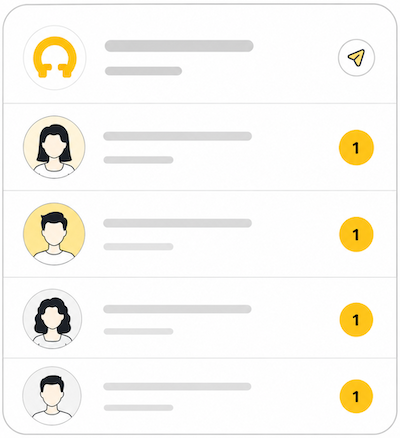
This is especially useful when a request crosses shifts. The first teammate can acknowledge the message. The next teammate can check the calendar and offer a time. If the customer replies later, the conversation returns to the same topic instead of a new employee’s private inbox.
Keep appointment conversations visible to the whole team
Connect one public bot to a private Telegram group and let teammates continue the same customer conversation.
A reliable confirmation workflow
Use the same sequence for every new appointment request:
1. Acknowledge the request
Tell the customer the message arrived and what happens next. If nobody can check immediately, give a realistic response window instead of leaving the customer guessing.
2. Clarify only what changes the decision
Ask for missing information in one message where possible. Avoid making the customer answer a long questionnaire one line at a time.
3. Check the real calendar
Availability must come from the tool the business trusts. Do not infer availability from an old message or a colleague’s memory.
4. Offer one or two exact options
“Tuesday afternoon” is still ambiguous. Offer “Tuesday at 15:00” or “Wednesday at 11:30” and ask the customer to choose.
5. Confirm in both places
After the customer agrees, record the appointment in the calendar and send an explicit confirmation in Telegram. Include the date, time, service, location and any essential preparation or cancellation information.
A concise confirmation can look like this:
Confirmed: haircut with Anna on Tuesday at 15:00, at our Main Street location. If you need to change the time, reply in this chat.

The calendar protects operations. The written confirmation protects customer expectations.
Handle reschedules without losing the original appointment
A reschedule is not complete when the customer says they cannot attend. It is complete when the old time has been released, a new time has been agreed and the calendar reflects the change.
Use this sequence:
- acknowledge the change request;
- find the existing appointment in the calendar;
- explain whether the original time remains reserved while alternatives are checked;
- offer a new exact time;
- update the calendar after agreement;
- send a fresh confirmation with the new date and time.
Keeping the conversation in the same customer topic makes the history easier to follow. The next teammate can see the original appointment, the reason for the change and the new agreement without asking the customer to start again.
Make cancellations explicit
Customers should not wonder whether their cancellation message was seen. Acknowledge it and state exactly which appointment was cancelled. Then update the calendar immediately.
If the business has a cancellation policy, present it before confirmation and apply it consistently. GramDesk organizes the conversation; it does not enforce deposits, cancellation windows or refund rules.
Prevent duplicate replies from several employees
Shared visibility helps, but it does not mean everybody should answer. Agree on a simple ownership rule. One person checks new requests during a defined period. If another teammate must take over, they read the topic first and continue from the latest confirmed fact.
At the start and end of each shift, check requests that are waiting for availability, waiting for the customer or waiting for a calendar update. This short review catches the dangerous middle state where the customer believes the team is working on the request but nobody currently owns the next action.
If messages are already disappearing during handoffs, use the broader checklist in how to stop losing customer messages in Telegram.
When this workflow is a good fit
GramDesk is a good fit when appointments need a short human conversation and two or more people may answer. It works well for salons, clinics handling administrative enquiries, tutors, studios, consultants, rental services and other small teams that already use Telegram.
For repair visits, cleaning appointments and handyman enquiries, continue with the dedicated Telegram support workflow for service businesses.
It is also useful when the business already has a calendar it likes. There is no reason to replace a working scheduling system just to give appointment messages shared visibility.
Choose dedicated booking software when customers must see live availability, select staff automatically, pay online, receive automated reminders, join a waitlist or manage recurring appointments. Choose a larger helpdesk when the business needs formal SLAs, complex permissions, analytics or multichannel ticket routing.
GramDesk costs about $0.10 per active bot per day, roughly $3 per month, with unlimited teammates included. That makes it a practical communication layer for a small team without adding a paid seat every time another receptionist or backup employee needs access.
Frequently asked questions
Can customers book an appointment directly through GramDesk?
Customers can request an appointment and discuss it with the team through the Telegram bot. GramDesk does not display live slots or confirm appointments automatically. The team checks its calendar and sends the confirmation.
Should the bot ask for an exact time or a time window?
A time window is often more useful for the first request because the customer’s first choice may be unavailable. Ask for two suitable days or windows, then offer an exact available time.
Can we use our existing booking calendar?
Yes. Keep the current calendar as the source of truth. GramDesk organizes the surrounding conversation so the team can see what the customer requested and what was confirmed.
Can a customer send photos or voice messages?
Yes. Customers can send photos, videos, documents and voice messages in the Telegram bot conversation. Ask only for information appropriate to the service and move sensitive or regulated information to the correct channel.
Will GramDesk send automatic appointment reminders?
No. GramDesk does not send automated appointment reminders. Use your booking platform’s reminder feature or send a message manually from the team’s normal workflow.
Turn appointment enquiries into a clear team workflow
Keep the conversation in Telegram, keep the confirmed schedule in your calendar and stop relying on one employee's personal inbox.